Since I originally wrote this post, Spotify have listened to their users, and restored their 'set the same volume level for all tracks' option to the Advanced Preferences of their desktop app.
And that's good news, because:
All you need to do to take advantage of this improvement is update to the latest version and restart Spotify.
We're not out of the woods yet.
Because Spotify's implementation of normalisation still sucks, big-time could still be improved - that's why getting why this preference option back was so important.
To find out what I mean, why this post is still here, and what you can do about it, read on.
Great news - it seems that Spotify have reduced their playback loudness level !
If so, it may be time to finally remove this post - but a few questions remain. Mainly, is the limiter still in use ? Until this is answered, I'll leave the post here.
Meanwhile, read on by all means, but bear in mind that the playback level is now -14 LUFS, which is a big improvement. For all the details, click here.
So far, so good !
Volume normalisation is everywhere, it's here to stay, and will ultimately make the Loudness Wars a regrettable footnote in music history – I hope.
All it means is that the audio we listen to is automatically played back at a consistent level, so we don't have to keep reaching for the volume control. Because big variations in loudness are always the number one cause of complaints.
Spotify does it, iTunes Radio does it, and now YouTube does it.
So far, so familiar. But recently, more and more people had been asking
Where did Spotify's 'set the same volume level for all tracks' option go ?
This is the option in Spotify's preferences that allows you to decide if you want volume normalisation on or not.
And for a while, they removed it.
Actually, that's misleading. The functionality was still there, and it was enabled by default for new users – all that happened was that the preference option was removed, for a while.
The good news is that the preference is back, albeit hidden away in the Advanced section. But you may still be asking…
In a nutshell - Spotify's implementation of this feature has several big problems.
The solution to these problems is simple, if not completely satisfactory.
For casual "shuffle" listening, you can enable Spotify's 'set the same volume level for all tracks' option - and put up with some pretty crass limiting on more dynamic material, unfortunately.
If you want to listen to a whole album with the internal dynamics intact and no extra limiting, you can disable it.
A bit of a pain, but not the end of the world.
Things could still be better, though.
Volume normalisation is a great thing, but it needs to be done right.
Apple's Sound Check currently leads the pack, with a sensible choice of reference level, working album mode and no low-quality limiting for very dynamic material.
Spotify on the other hand, has a way to go yet. Happily they did the right thing and restored the 'volume normalisation' option to the program's preferences, but that still doesn't help with the unnecessarily loud playback volume, the lack of album mode, or the crude limiting when the option is enabled.
Spotify have an active user forum, and to their credit, they listen to what people say. So let's tell them these are issues we care about !
To vote for my suggestion to reduce the reference volume level, and stop using the limiter, click here.
To vote for the addition of a working "album mode", add "Kudos" here.
Spotify listened to us about the volume Preference option, hopefully they'll listen about these other issues, too.
Please tell your friends !
This section of the post is irrelevant now, but for those who are interested, here's the fix from the original post. It was even more of a pain than the old Preferences option, but at least it worked.
On a Mac, this fix is pleasingly simple. On a PC… less so.
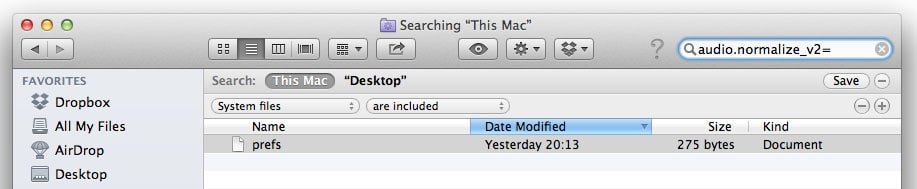
That's it ! Volume normalisation will now be enable or disabled, depending on whether you chose "true" or "false"

That's it ! Once again, volume normalisation will now be enable or disabled, depending on whether you chose "true" or "false"
Luckily you don't have to repeat all these steps every time.
On Mac, right-click on the "prefs" file and select "Make Alias". On PC, right-click and choose "Create Shortcut". You can put the resulting files on your desktop or anywhere convenient, and in future when you want to change Spotify's volume normalisation setting you can just open them up and edit the value to say "true" or "false" as needed. You may need to specify to open the file with TextEdit on PC, but it's not the end of the world. It's also safe to rename the shortcut/alias files if you prefer.
[Credit where it's due - I found the Mac hack for this here, and the easiest way to apply the PC hack here.]